In this guide, we will learn how to set up a custom header and footer for the customer panel. These elements are essential for adding links and marketing items, enhancing user navigation and engagement. Additionally, we will explore how to customize the header and footer colors, including text and hover effects, to align with your brand identity.
Step 1: Log in to your panel with your credentials.

Enter your login email and password and click on the login button.
Step 2: After logging in successfully, click on the settings option from the sidebar.
Step 3: Then, click on the CMS Settings to set up the header and footer.
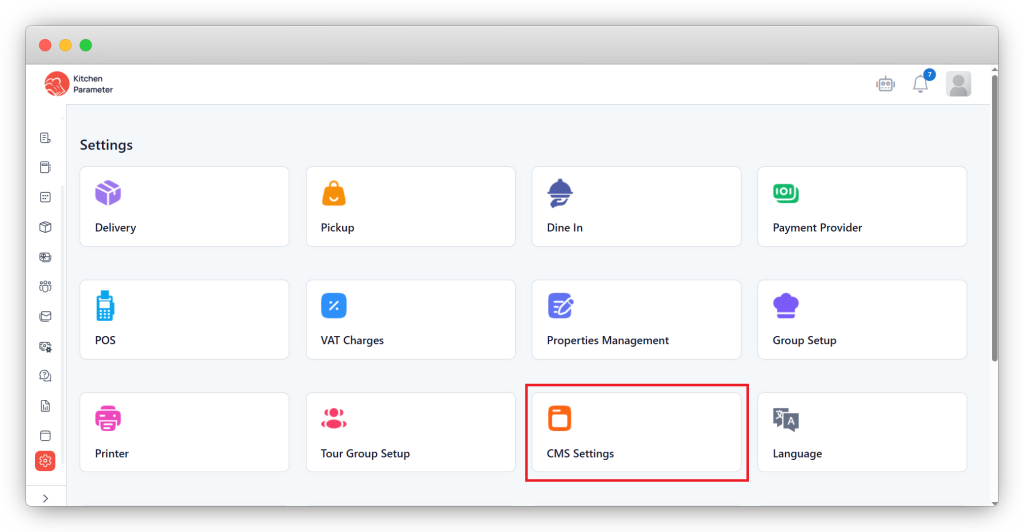
Header setup:
Step 4: Click on the Add menu button to create a new menu.
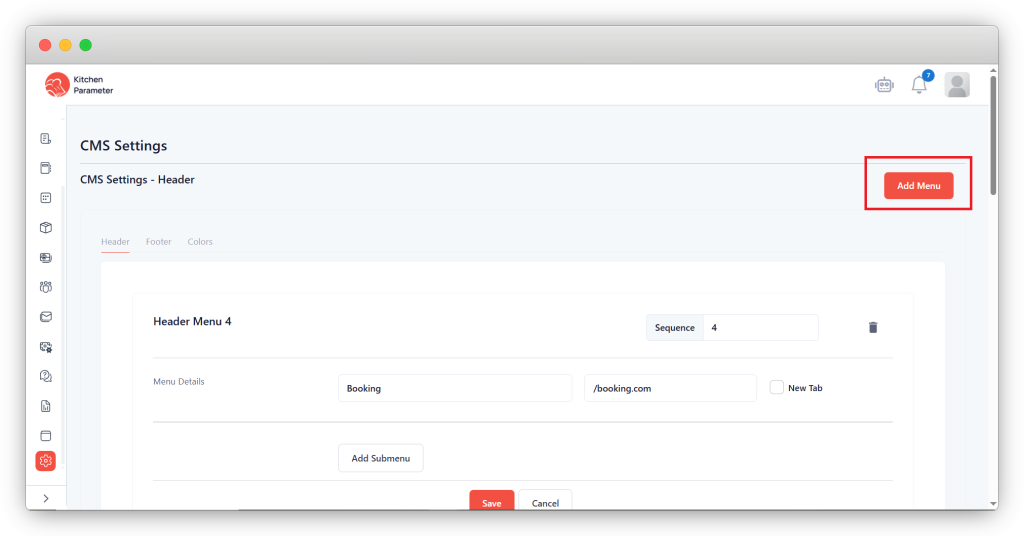
- Enter the sequence number.
- Enter the URL you want to show on the header.
- Enter the name of the menu (alias).
- If you’re going to open the new tab, select the new tab check box.
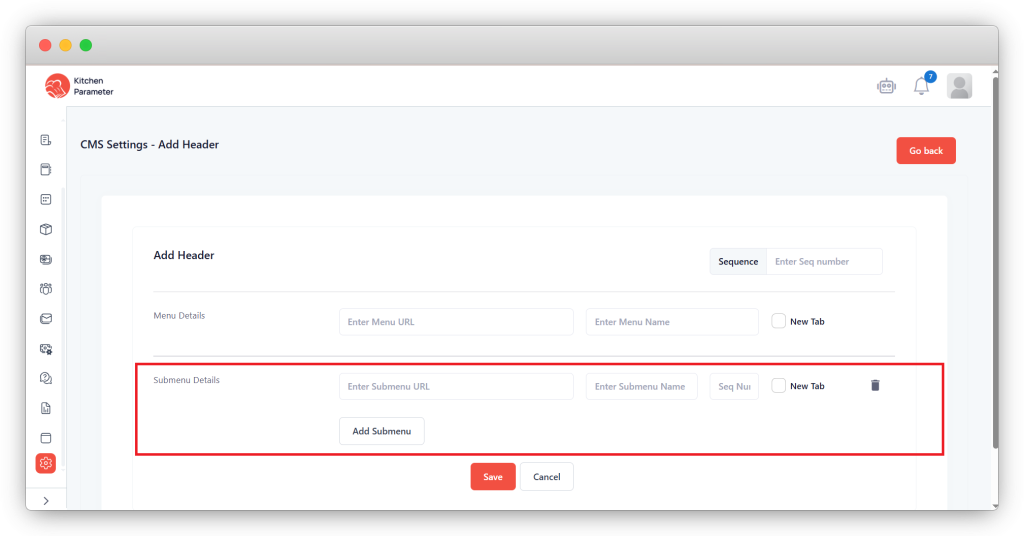
Header setup with sub-options:
- Follow the same steps till 4 in the header and
- Click on the sub menu button.
- Enter the URL you want to add under the submenu
- Enter the name of the sub menu(alias)
- Enter the sequence number and
- If you’re going to open it in the new tab, then select the new tab option.
- Finally, click on the save button.
Footer setup:
After setting the header, we are setting the footer for better sight on the customer end.
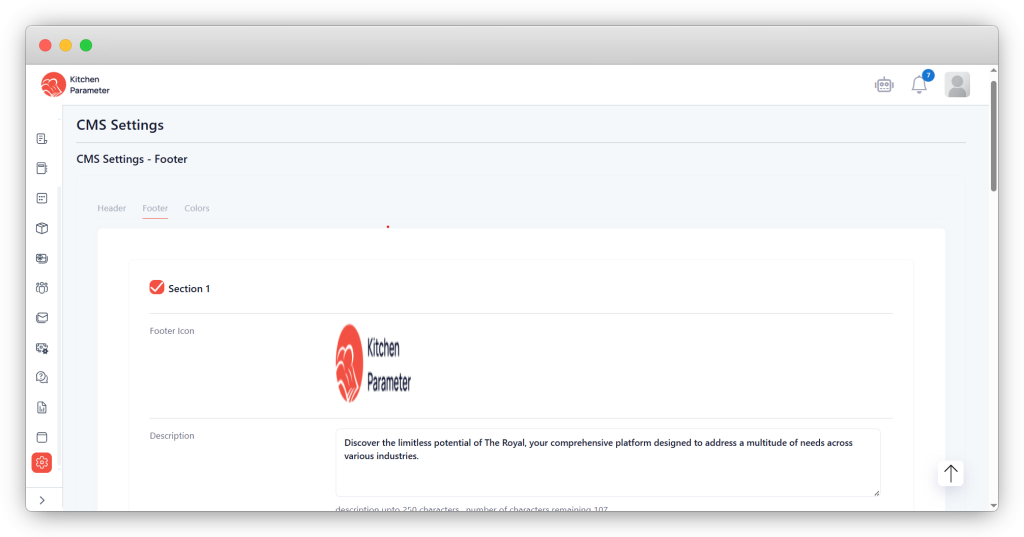
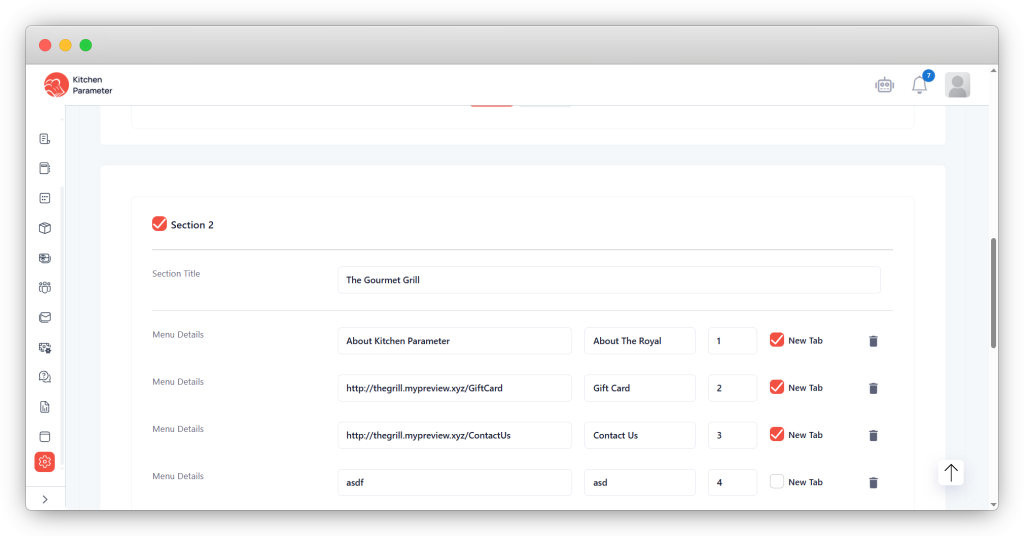
- Click on the footer bar.
- Enter the section title name
- Enter the URL and name for that URL in their input boxes.
- Enter the sequence number.
- If you want to open it in a new tab, then select the new tab option.
- For more menus, click on the Add menu button.
- Now select the section as per your choice
- Finally, click on the save button to save data.
After entering all those sections’ details, please select the sectional checkbox whether you want to show it or not in the customer panel.
Color setup for header and footer
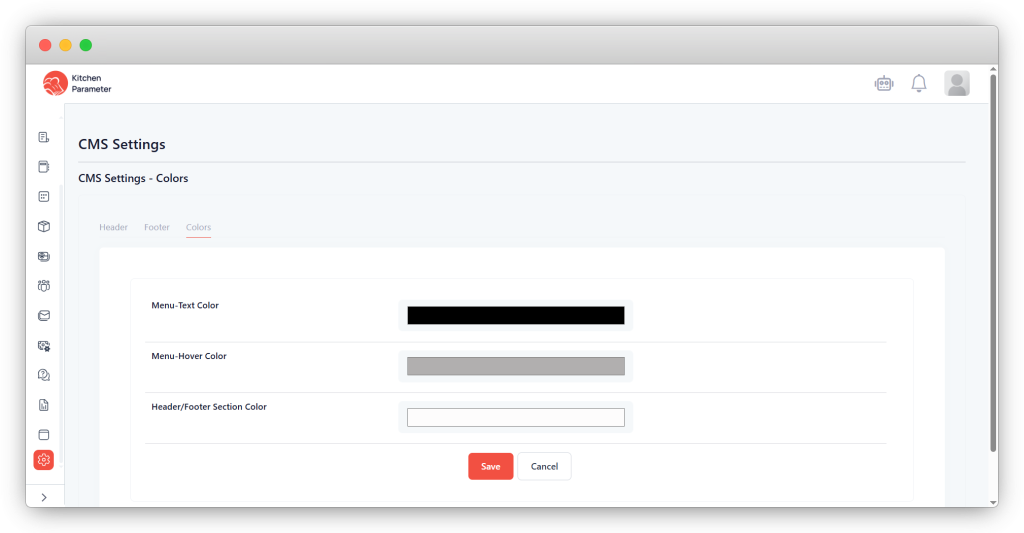
- Click on the Colors bar.
- Now, we will find the three points under the colors tab.
- Menu-Text color, which is useful for changing the text color
- Menu Hover color is for setting the color when we move the mouse on to the text
- Header/Footer Section Color: We can set up the both header & footer background color.
- Finally, after selecting the color. Click on the save button