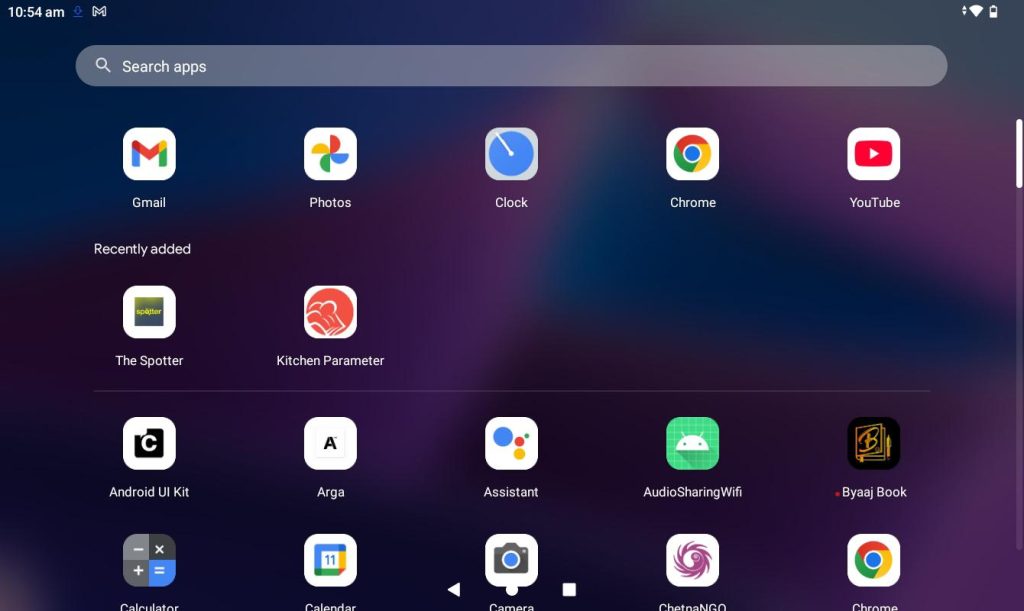
Step 1: Open the application from the Tablet.
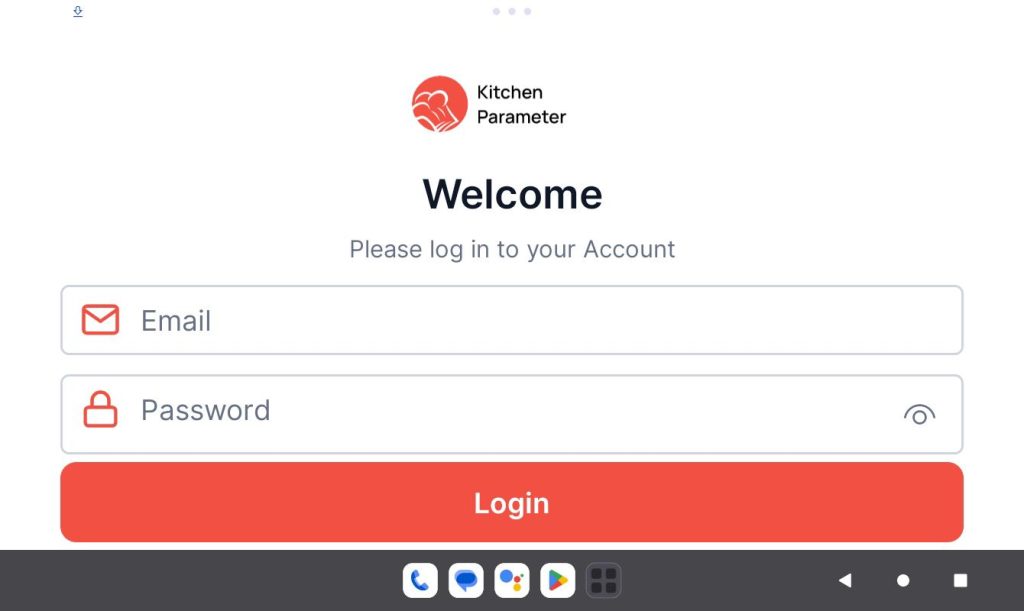
Step 2: Log in with your branch manager credentials.
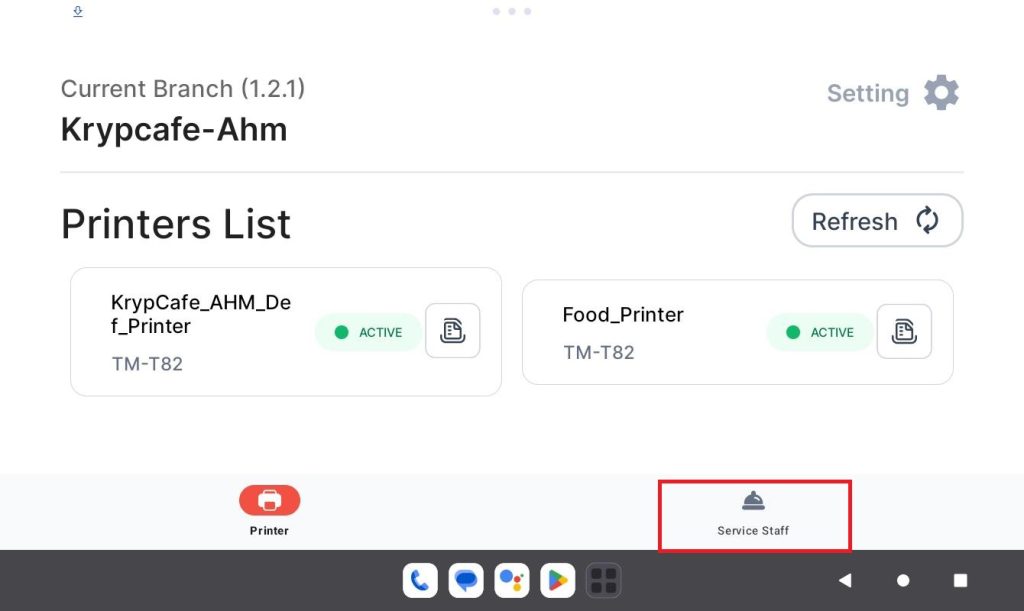
Step 3: Click on the “Service staff” tab
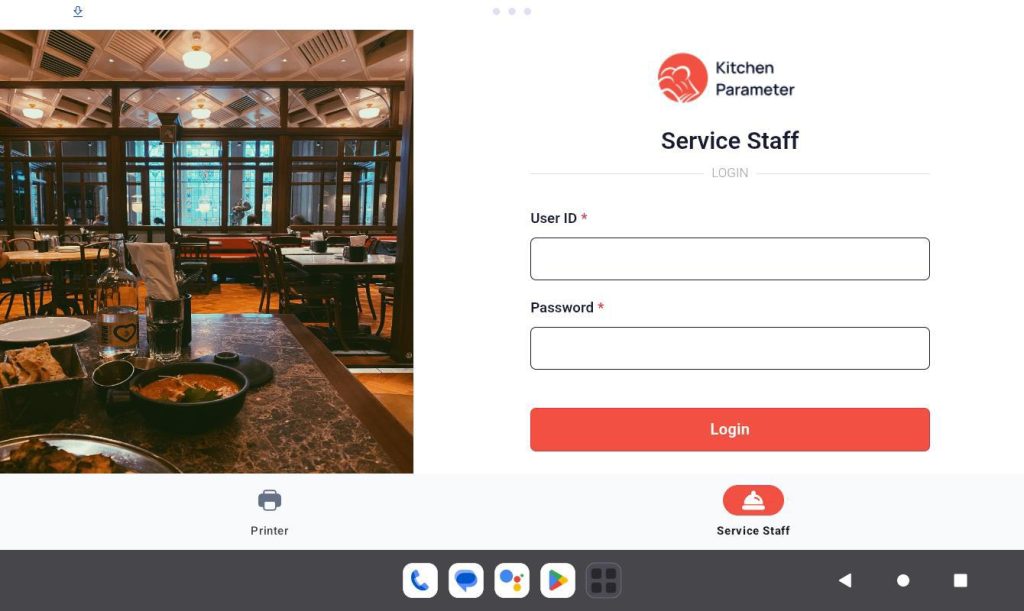
Step 4: In the login page, enter your “Staff ID” and “Code”
Step 5: Click on the login button.
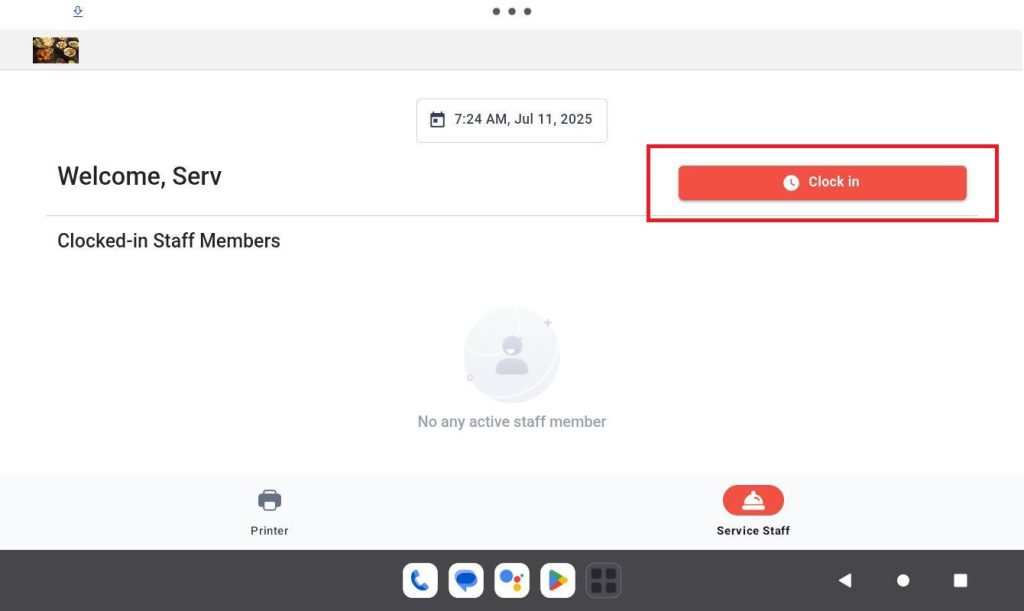
Step 6: After logging in then click on the “Clock-in” button to clock in to your shift.
Step 7: Click on the any table from the table list.
Step 8: Add the Products to the cart.
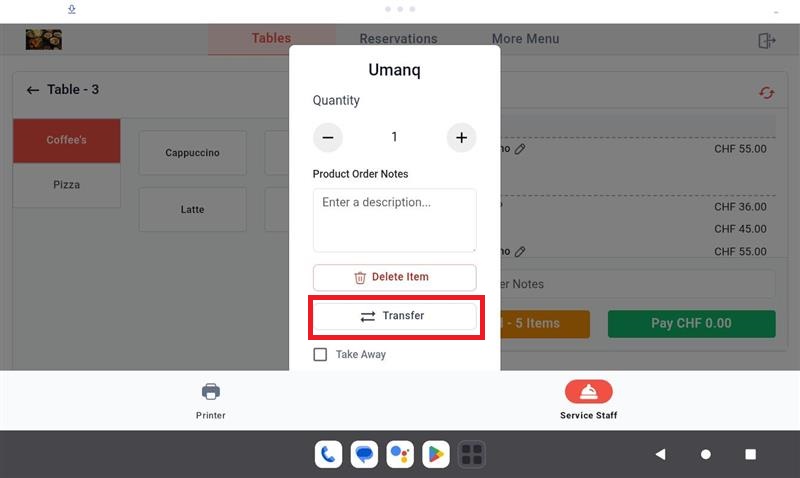
Step 7: Click on the “Edit” option in the cart level at “Product”.
Step 7: Click on the “Transfer” option inside the product pop up.
Step 8: Select “Course” inside the popup.
Step 9: After selecting the course, click on the “Transfer” button.
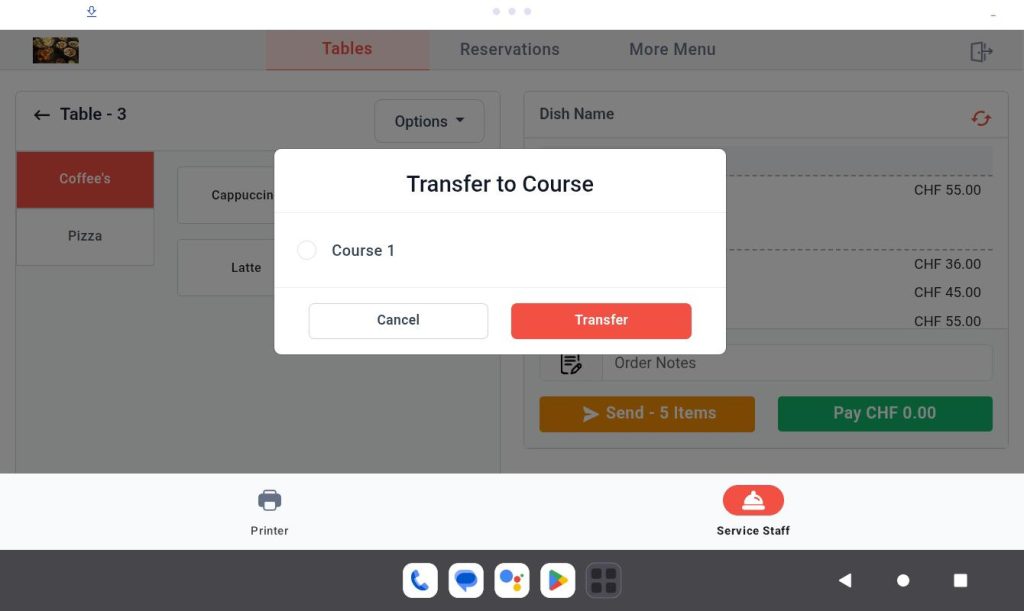
By following the above steps you are successfully transferred a product from one course to another course.
Step 10: Now let’s see how to transfer products from one course to another.
Step 11: Click on the edit option on the course.
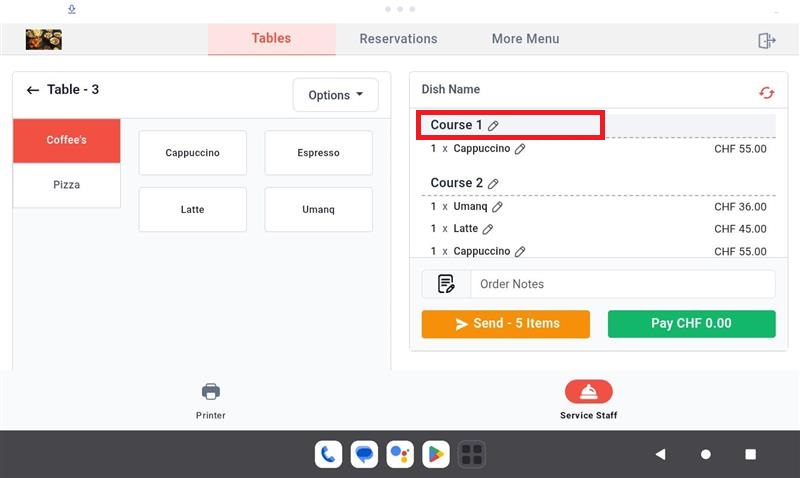
Step 12: Select “Course” inside the popup.
Step 13: After selecting the course, click on the “Transfer” button.