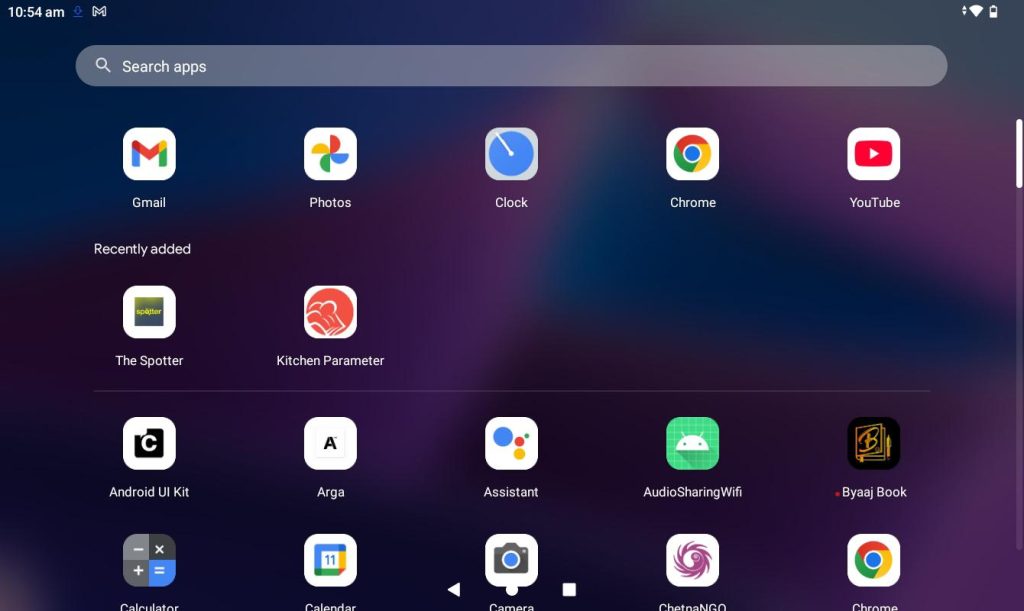
Step 1: Open the application from the Tablet.
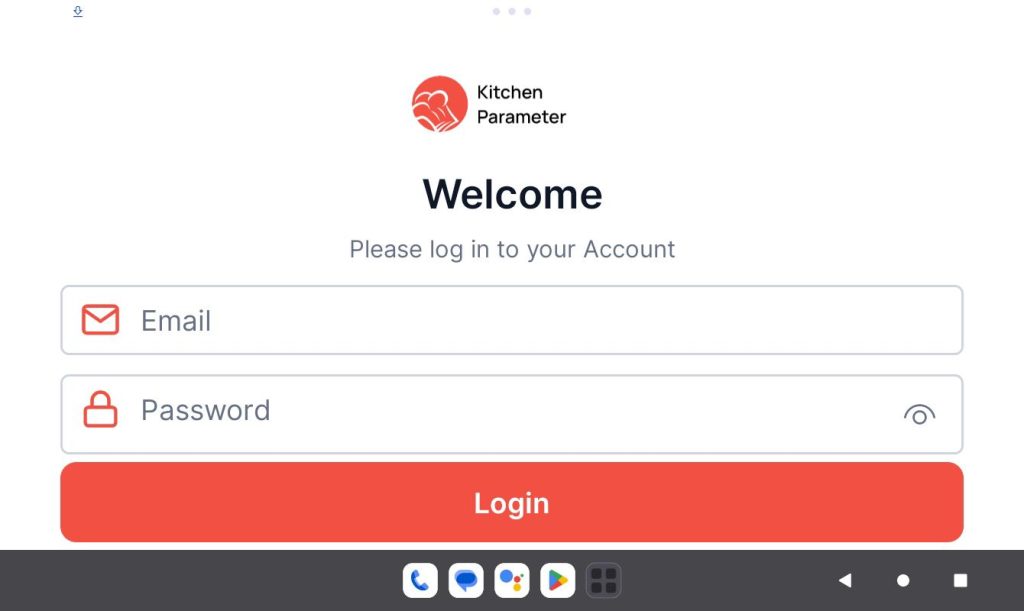
Step 2: Log in with your branch manager credentials.
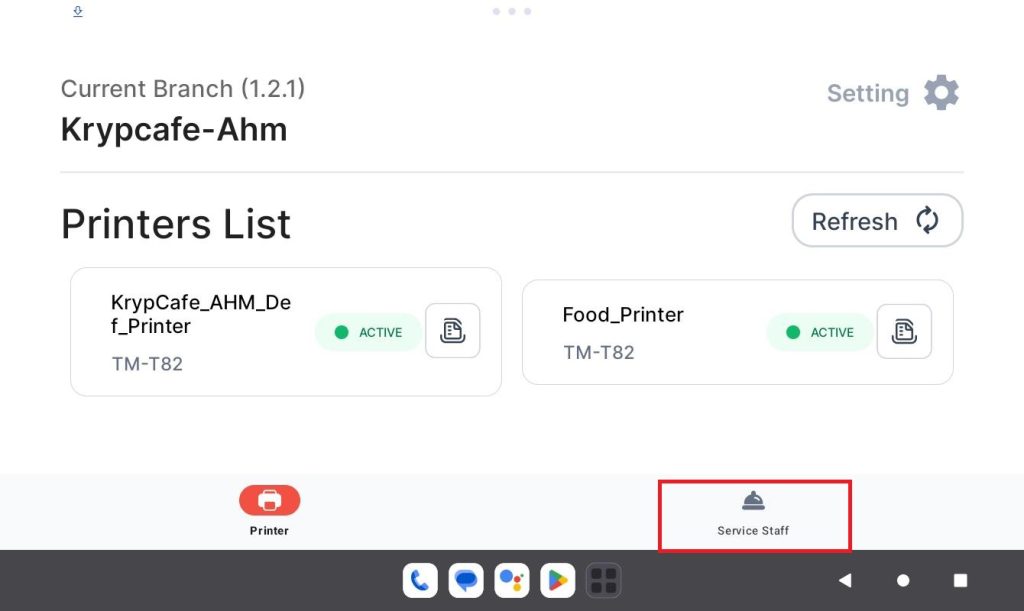
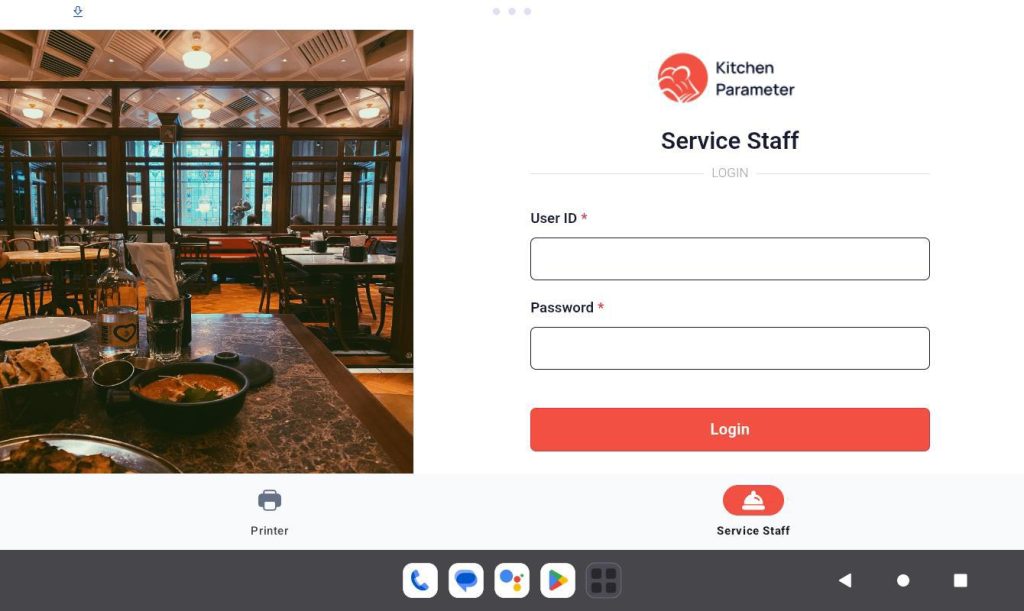
Step 3: Click on the “Service staff” tab
Step 4: In the login page, enter your “Staff ID” and “Code”
Step 5: Click on the login button.
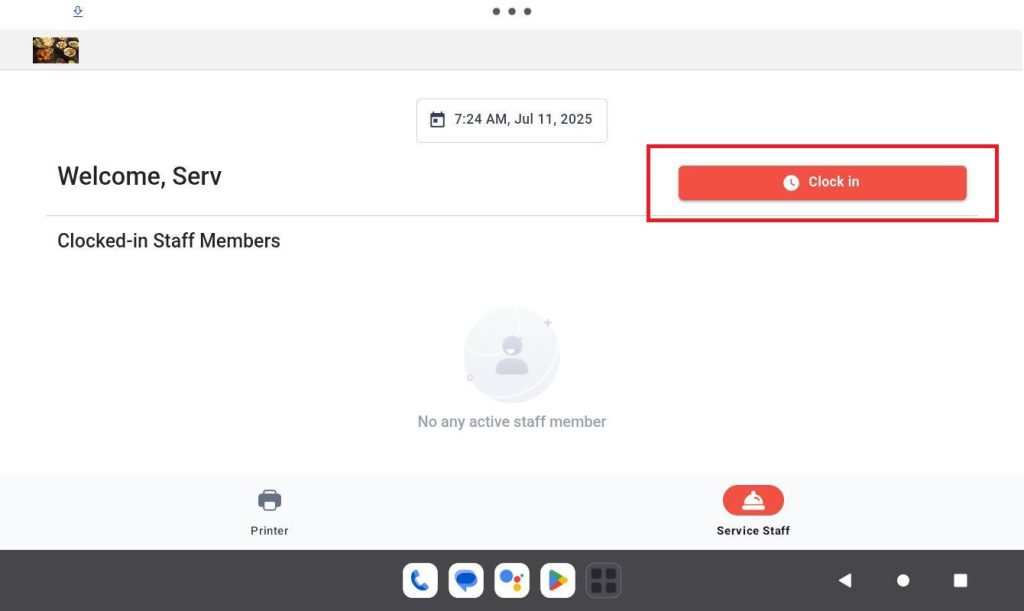
Step 6: After logging in then click on the “Clock-in” button to clock in to your shift.
Step 7: Click on any “Closed / Available” tables.
Step 8: Add the items to the cart.
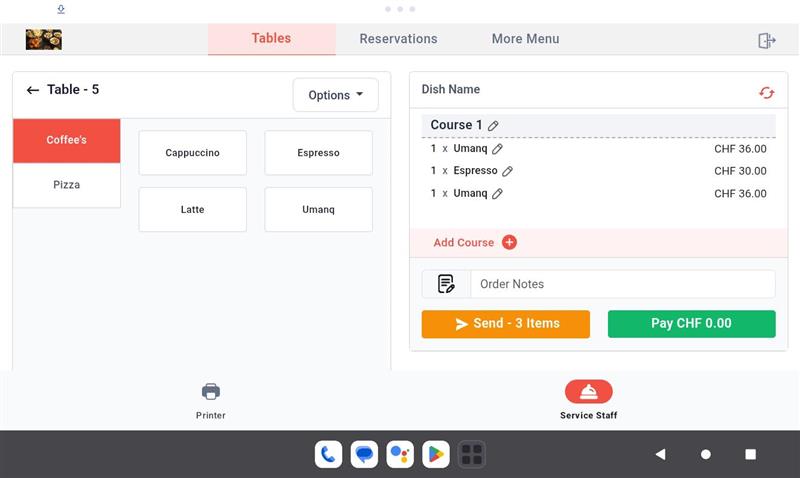
Step 9: After adding the items then click on the “Send items” button.
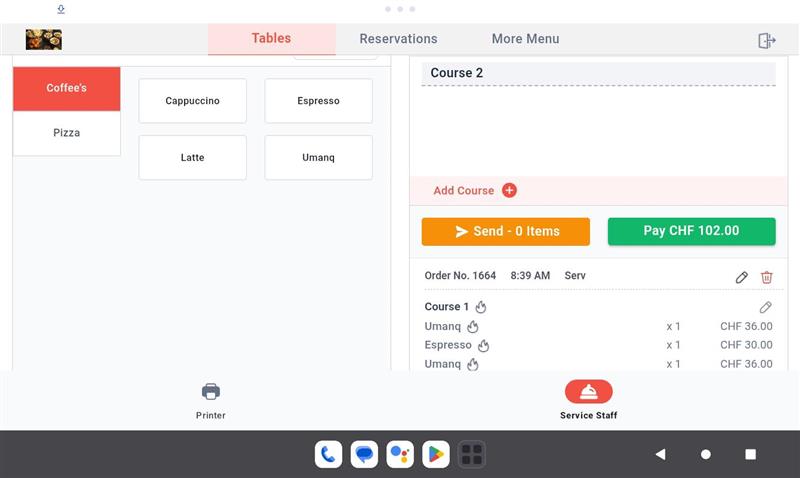
Step 3: Click on the Pay button.
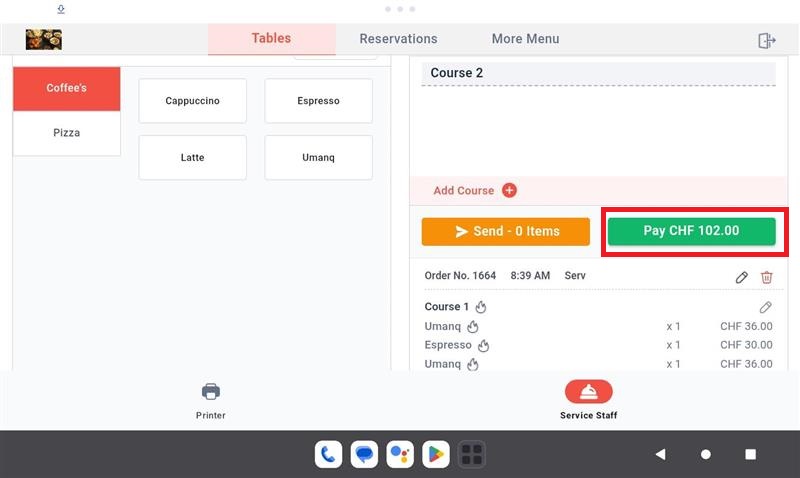
Step 4: In the payment page we can see payment options
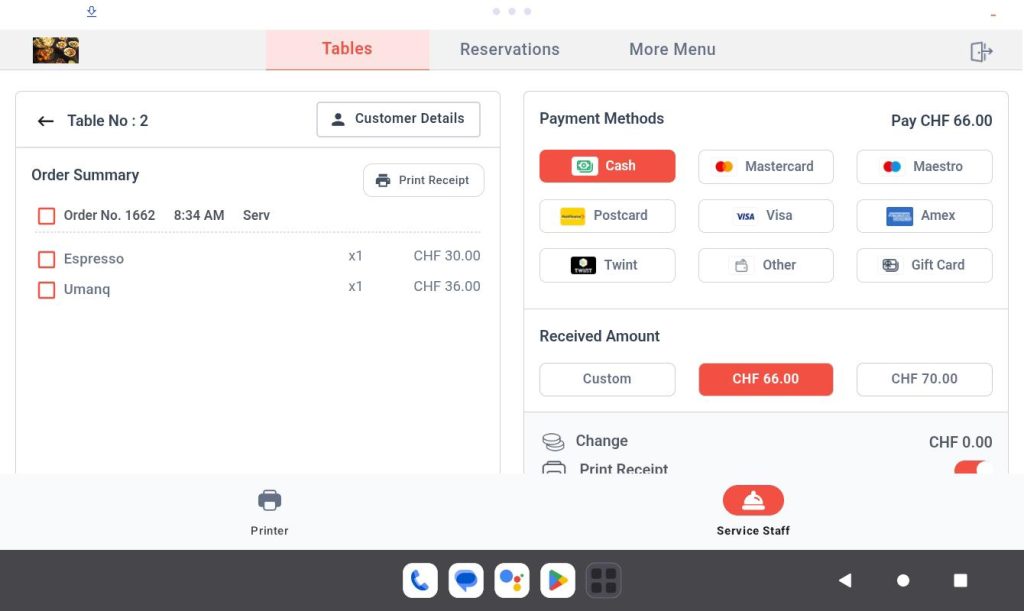
Step 5: Click on the “Payment” option you want
Step 6: Enter the amount value inside the pop up (Make sure you entered amount is below the order amount).
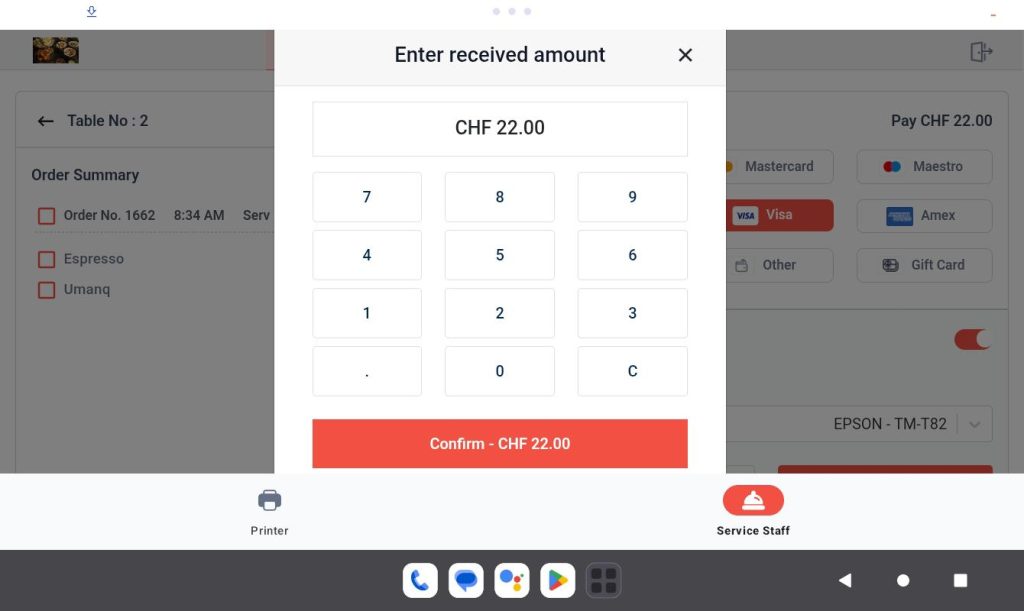
Step 7: Click on the “Confirm” button.
Step 8: Click on the “Payment” button in the Payment page.
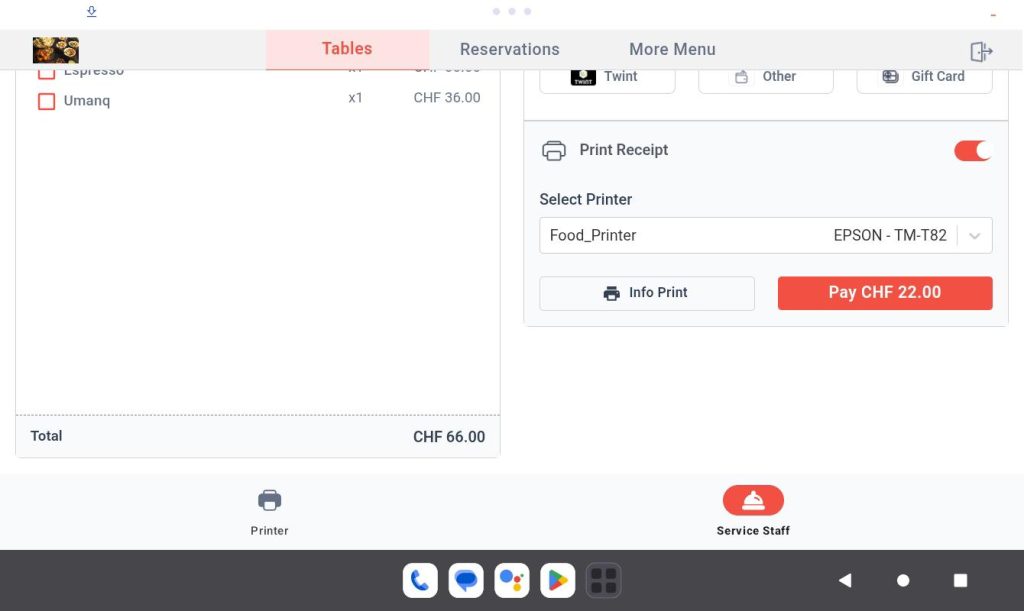
Eg:
Order amount is 90 CHF, then you entered 45 CHF in the “Pop up” then you will see
Total: 90 CHF
Partial Payment: 45 CHF
Amount Due: 45 CHF
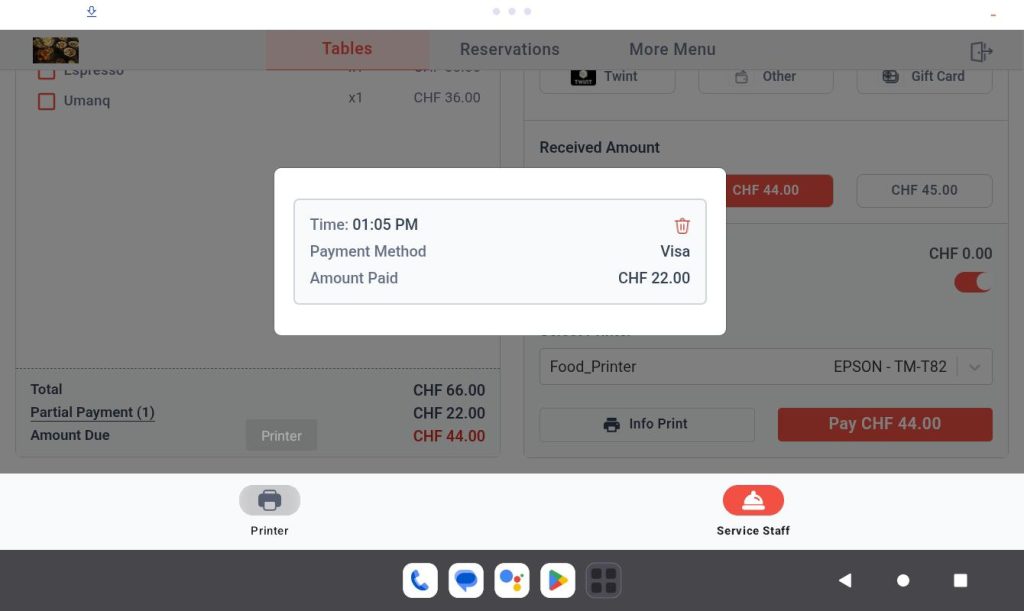
Step 9: After clicking on the Pay button then we can see the payment details in the left hand side.
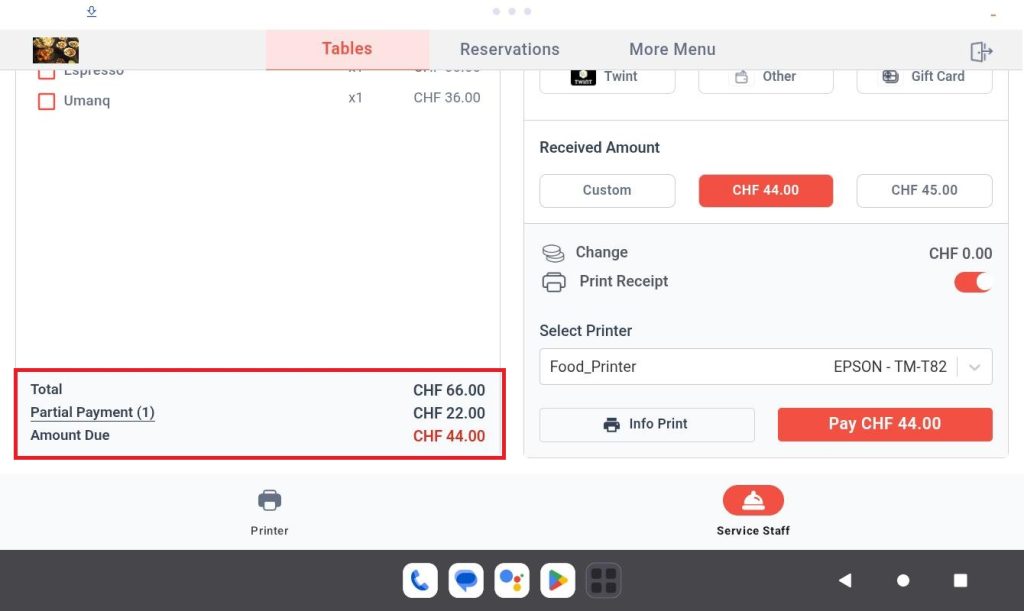
Step 10: Click on the Partial Payment text then you can see all the Payments you made till now.