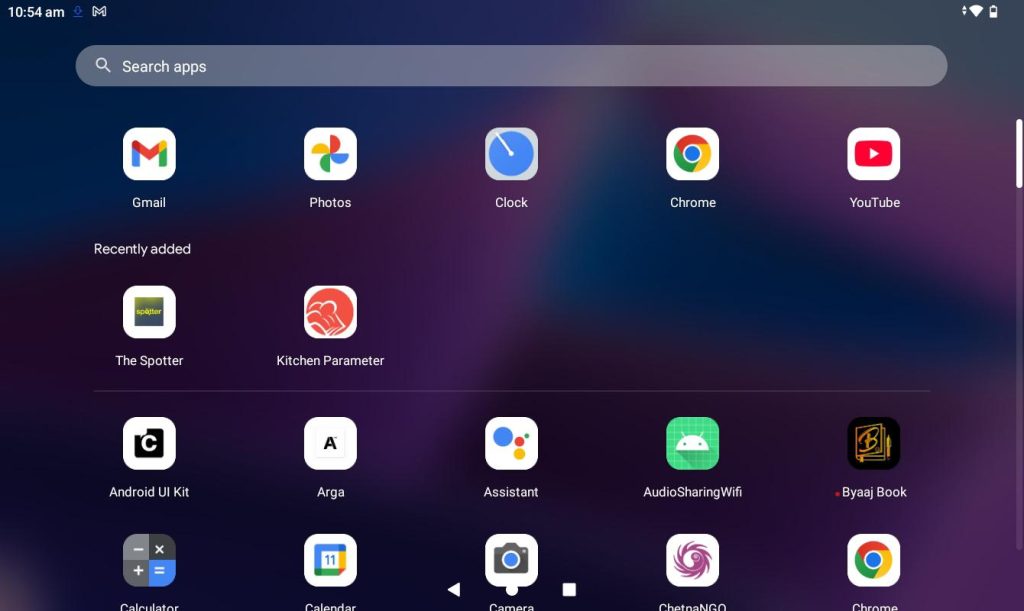
Step 1: Open the application from the Tablet.
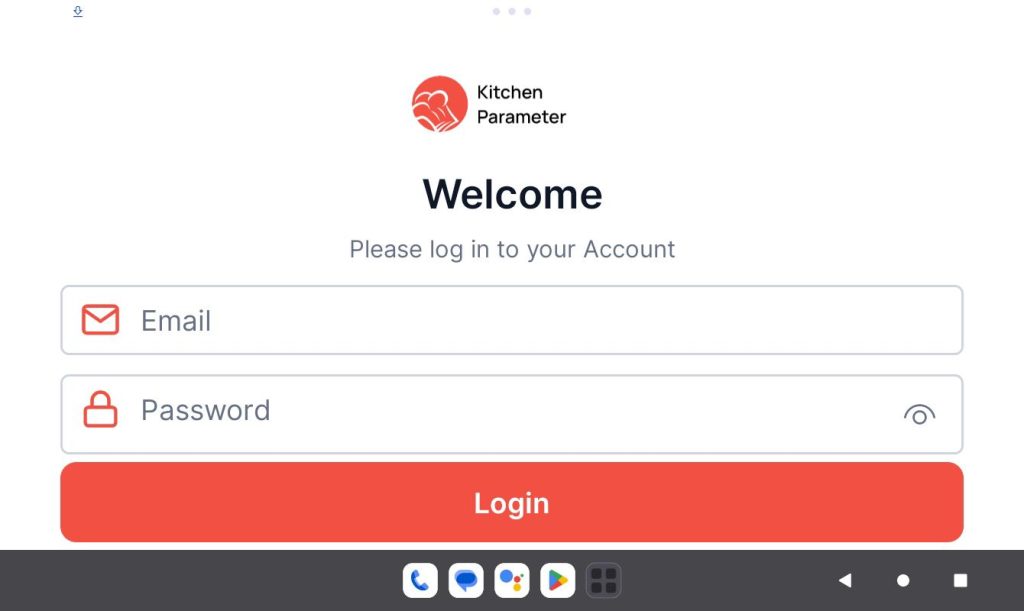
Step 2: Log in with your branch manager credentials.
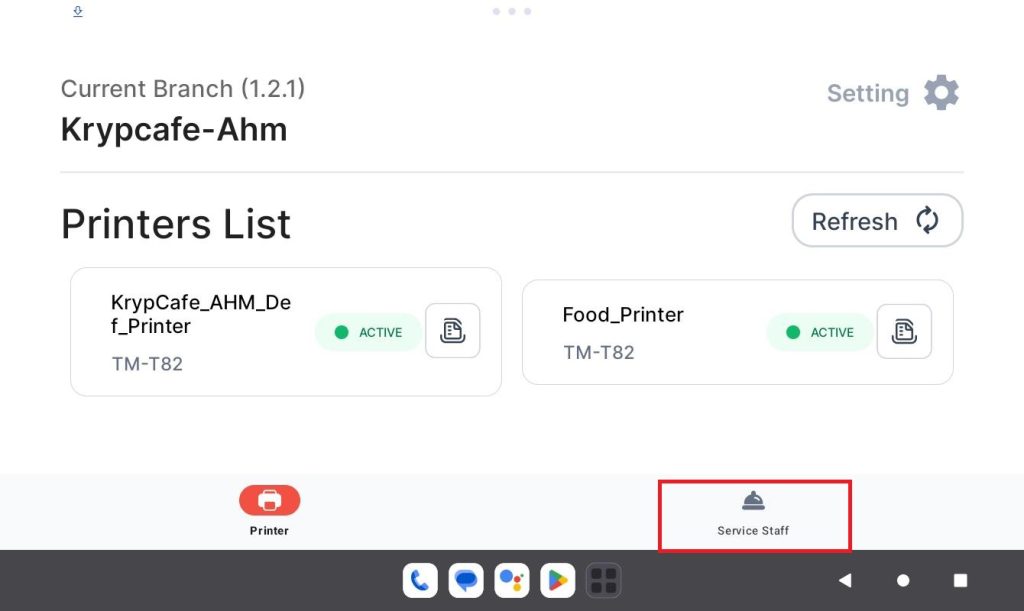
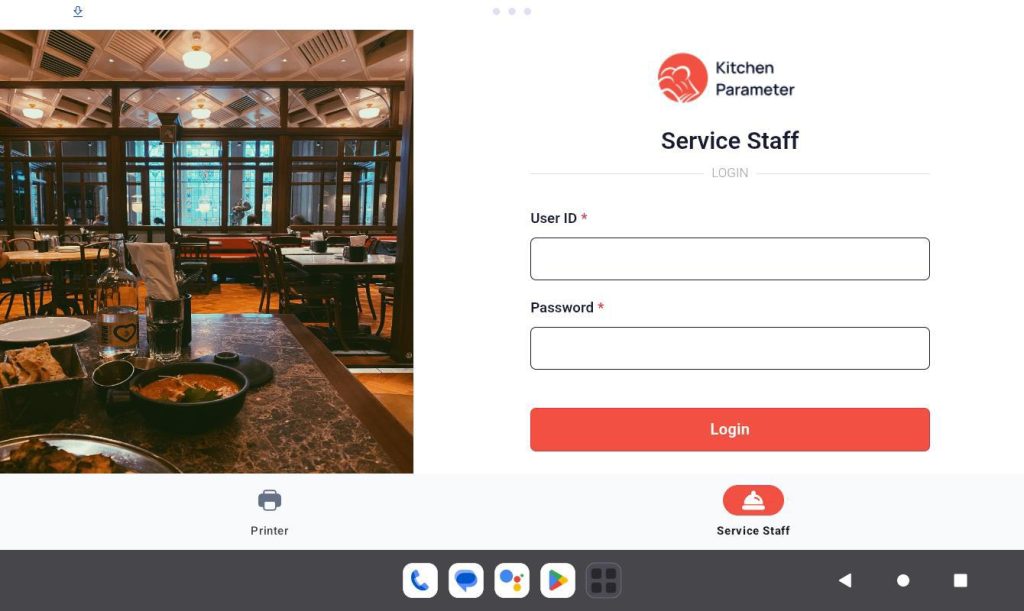
Step 3: Click on the “Service staff” tab
Step 4: In the login page, enter your “Staff ID” and “Code”
Step 5: Click on the login button.
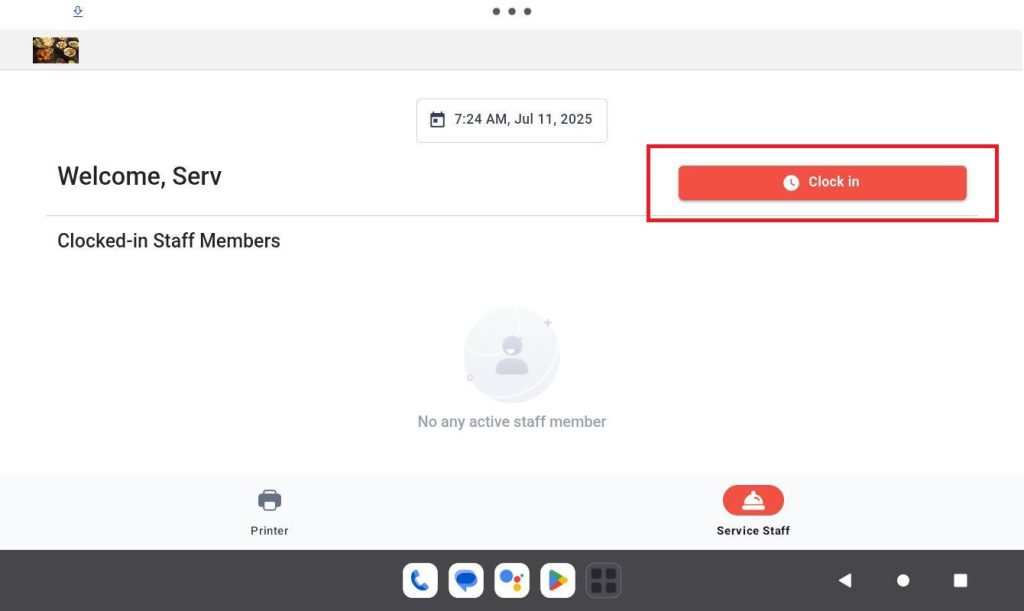
Step 6: After logging in then click on the “Clock-in” button to clock in to your shift.
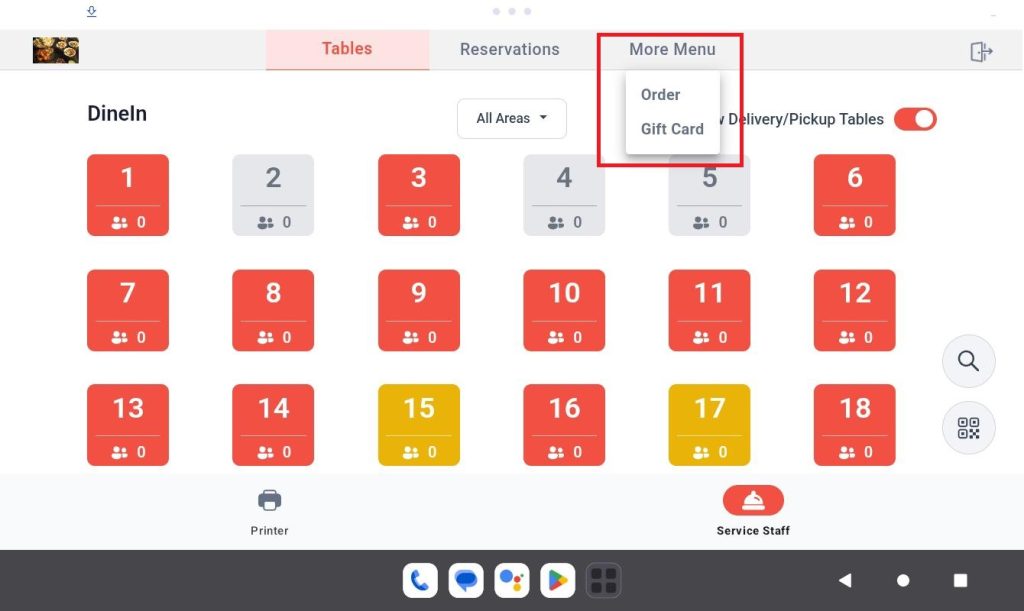
Step 4: Click on the “More” in the header
Step 5: Click on the “Gift Card” option from the “More”
After all these steps, you are inside the GiftCard page, which contains Multiple themes of the voucher. Now let’s see how to purchase the voucher.
Step 6: Click on one of the themes from the themes
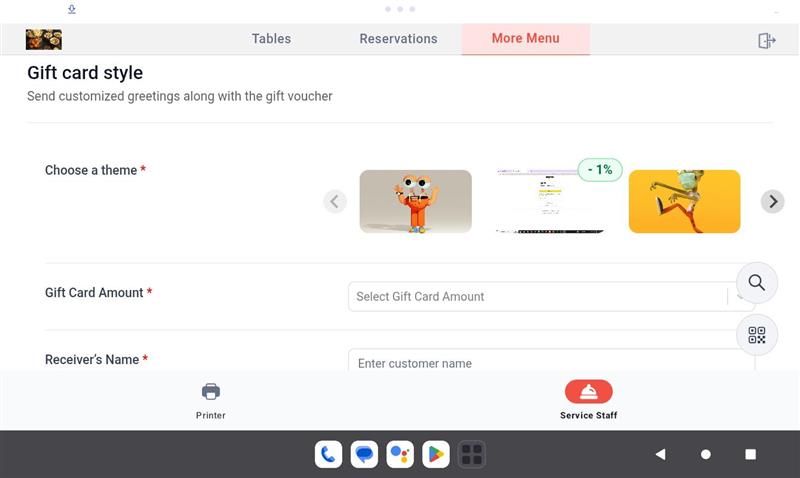
Step 7: Enter the “GiftCard Amount”. If you want to enter some random value, then click on the “Custom Option”.
Step 8: Enter all the other customer-required details.
Step 9: Finally, select the payment method option.
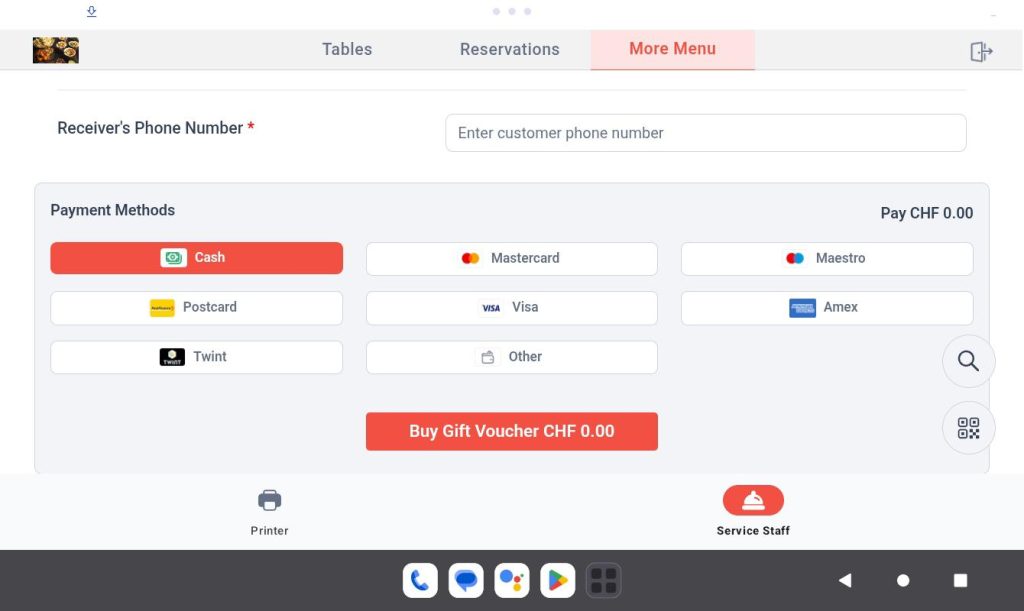
Step 10: After doing all those, click on the “Buy Gift Voucher” button.
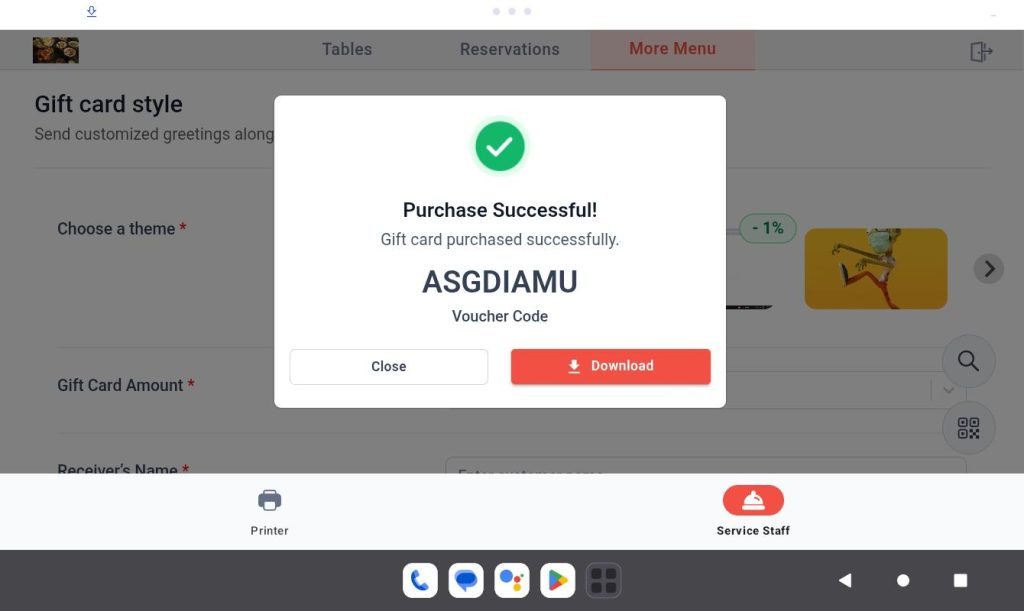
You will get the pop-up which displays the “Voucher Code” and “Voucher” download option.