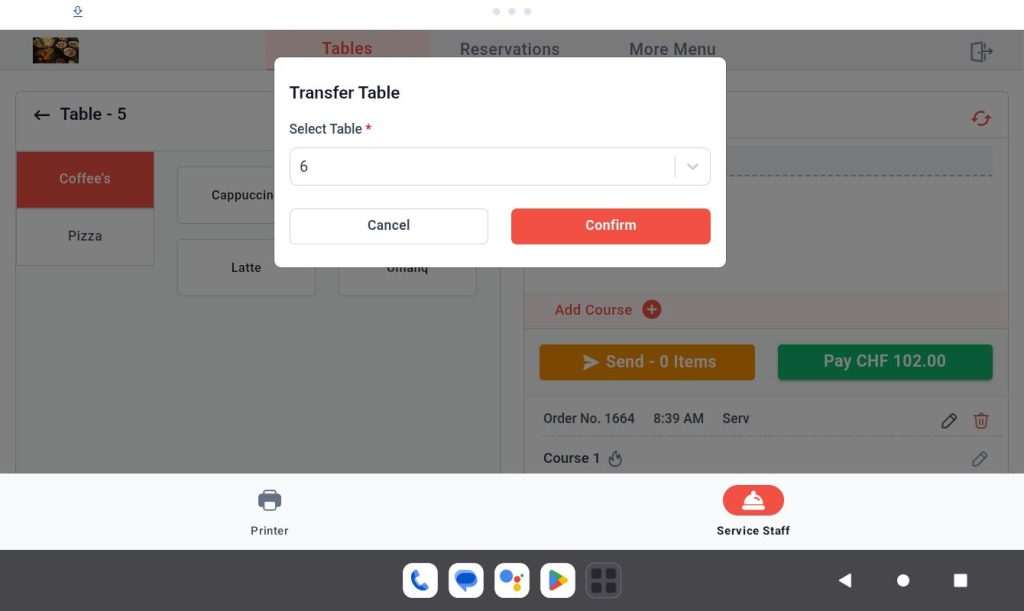
1. Opening a Table
Example: Opening a “Dine-In” table on the “First Floor.
Step 1: Filter the desired area using the Area dropdown menu.
Step 2: Locate the Dine-In table within the selected area.
Step 3: Click on the table to open it.
Step 4: Add items to the cart.
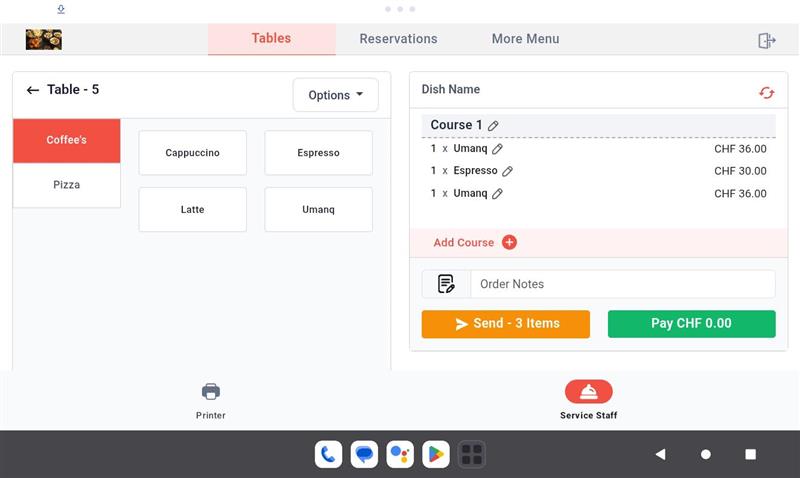
Step 5: Click the “Send Items” button to place the order.
2. Closing a Table
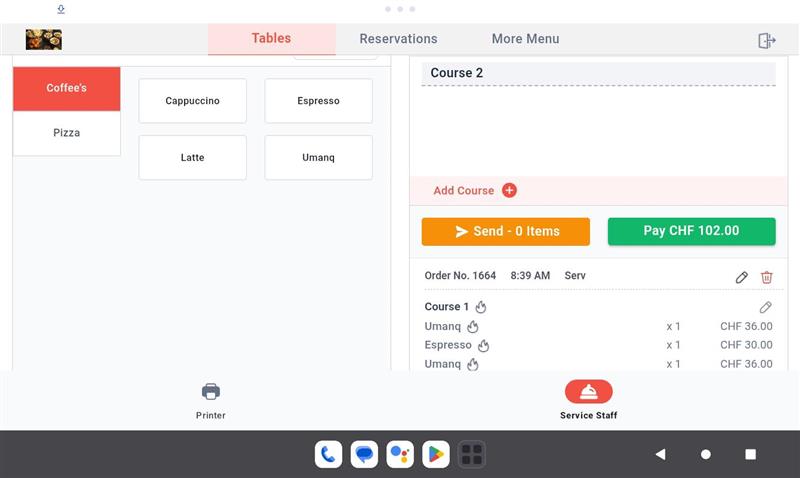
Scenario 1: If an order was placed
- Step 1: Click on the Open table you want to close.
- Step 2: Complete the payment for the placed order.
Scenario 2: If no orders were placed or the orders were deleted
- Step 1: Ensure you are on the Menu List page.
- Step 2: Click on “Actions”.
- Step 3: Select the “Close Table” option from the Actions list.
- Step 4: Confirm the close table action.
3. Transferring a Table
To move the order and data from one table to another:
Step 1: Click on the Open table you want to transfer from.
Step 2: Open the “Options” menu on the product page.
Step 3: Select the “Transfer” table option.
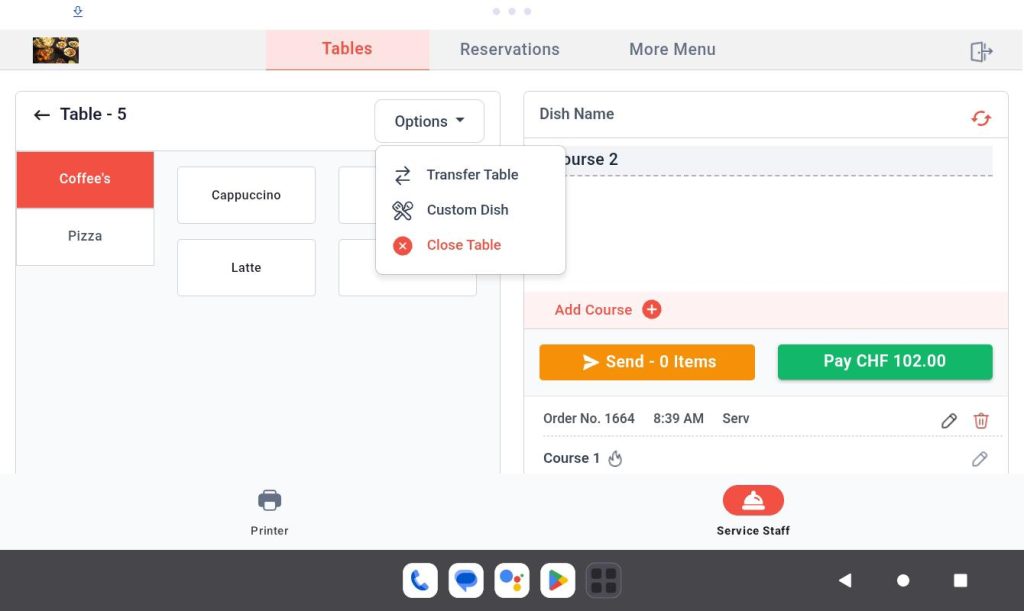
Step 4: Choose the target Table Number to which you want to transfer the data.
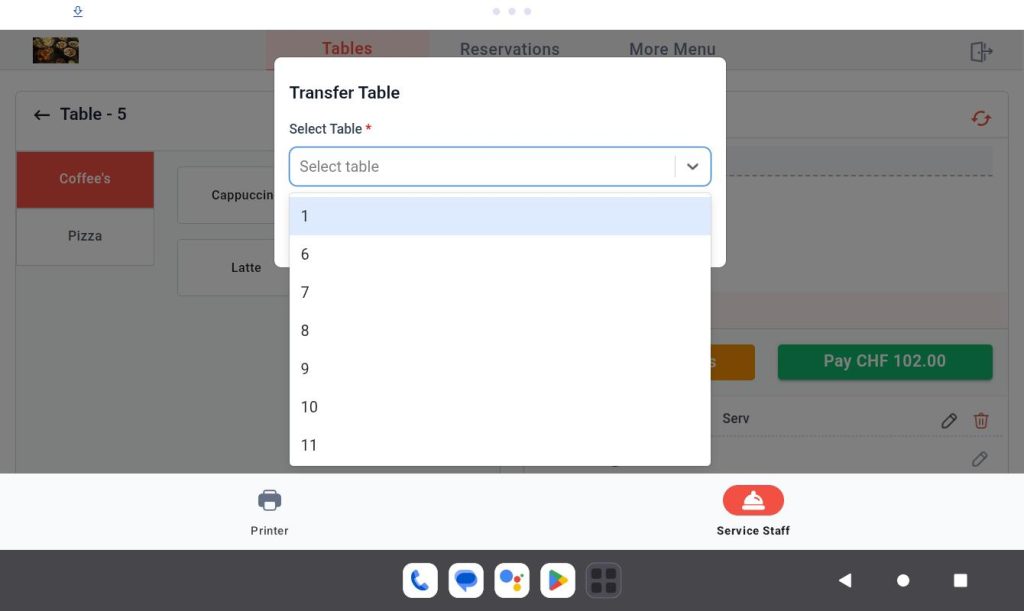
Step 5: Confirm by clicking “Confirm” button.